How Ottawa Residents Can Protect Their Data Before a Laptop or Phone Repair
Practical, easy-to-follow steps for backing up and securing your laptop or phone before repair, plus what to expect from certified mobile technicians when it comes to data recovery and privacy.
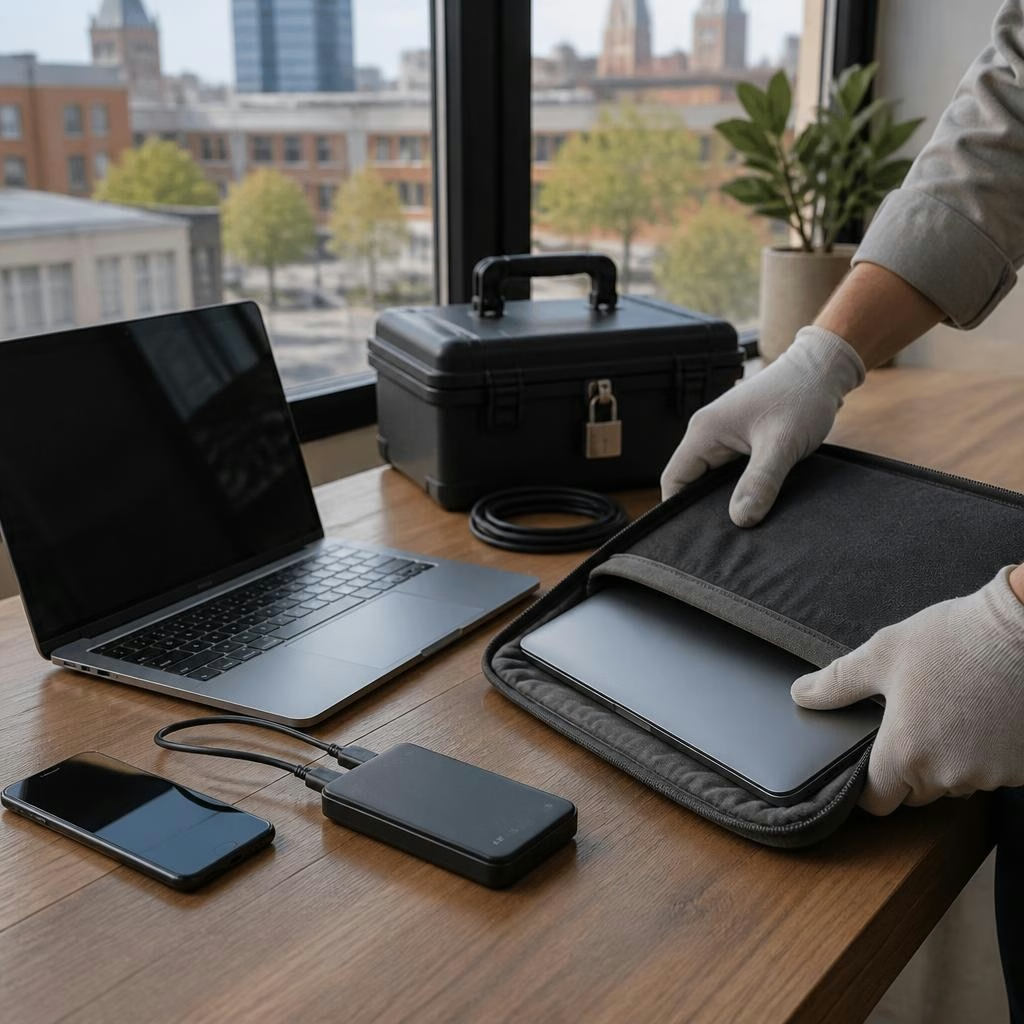
Why preparing your data matters
A device failure is often stressful — many people worry about lost documents, photos, or work in progress. That concern is exactly why making a quick backup and taking a few privacy steps before repair can save time, money, and headaches. Local customers have praised technicians who both recovered data and explained the process calmly, showing how important preparation and professional handling can be.
Basic backup options for laptops (quick wins)
Start with the simplest, quickest backups: copy important folders (Documents, Desktop, Downloads, Photos) to an external USB drive or a second internal disk if you have one. Use the built-in tools: Windows File History or Backup and Restore, and macOS Time Machine. For an extra layer, sync critical files to a cloud service you already use (OneDrive, Google Drive, Dropbox). If you prefer a single image of your system, disk-imaging tools can capture everything, but they take longer — good if you have large applications or a complex setup.
Backing up smartphones and tablets
For iPhone users, an encrypted iCloud backup or an encrypted local backup via Finder/iTunes preserves messages, app data, and settings. Android users can back up to Google (apps, contacts, basic settings) and also copy photos and files manually to a PC or cloud storage. Don’t forget removable media: remove any SD card and back it up separately. If you need total certainty, export important chats, photos, and documents to a computer or external drive before bringing your device in.
Encryption basics: what it protects and what to enable
Encryption protects the contents of your device so data is unreadable without your passcode or key. On laptops, enable full-disk encryption (BitLocker on many Windows editions, FileVault on macOS) so a technician can still access files for repair if you provide credentials while the disk stays encrypted at rest. On phones, using a secure passcode and keeping device encryption enabled (default on recent iPhones and many Android phones) is important. When backing up, prefer encrypted backups if the option is available — they add a layer of security for transmissions and storage.
How to prepare your device safely before repair
Before handing over a device, do these things: 1) Back up essential data as described above; 2) Note down or export any two-factor authentication (2FA) recovery codes you may need; 3) Remove SIM cards and external storage if you want to keep them private; 4) Sign out of services you’re uncomfortable leaving logged in, but avoid factory resets if you need data recovery — a reset can make recovery impossible. If you must keep a lock on the device, provide temporary credentials to the technician in person or arrange to be present during the diagnostic.
What to ask your technician about privacy and recovery
When booking a repair, ask how the shop handles sensitive data: Do they offer secure data recovery and transfers? Will they work on-site or provide a mobile visit? How are recovered files returned (direct transfer, encrypted drive, cloud with temporary link)? For example, several local customers have praised technicians who recovered important files and explained each step clearly — that transparency is a good sign. Also confirm certifications (such as Google IT Support or CompTIA A+) if that reassures you, and whether bilingual communication or remote support is available so you can follow along.
Quick pre-repair checklist and local support options
Before you bring a device in or request a mobile visit, complete this checklist: 1) Back up and verify copies of key files; 2) Export 2FA recovery codes; 3) Remove SIM/SD cards you want to keep private; 4) Note any passwords or provide temporary access in person; 5) Tell the technician if you need data recovery so they do not perform a factory reset. If you live in Ottawa or nearby (Nepean, Barrhaven, Gatineau and surrounding neighbourhoods), consider a certified mobile tech who can do on-site or remote support and explain recovery options before work begins. A calm explanation and successful recovery are common reasons customers say they feel relieved after repair — a good technician will make privacy and data safety a priority.
Customer review


Article by
Avendia Tech Solutions
🚨 Urgence TI / IT Emergency? AVENDIA TECH SOLUTIONS est le leader certifié CompTIA A+ à Ottawa, Gatineau, Nepean et Barrhaven. We specialize in global remote assistance, broken iPhone data recovery, and complex OS repair. Fini le réparateur amateur : nous utilisons des équipements de pointe comme iFixit Pro pour livrer un service de calibre entreprise. Whether you need secure data transfer, software diagnostics, or hardware fixing, our certified experts protect your digital life. Assistance à distance partout dans le monde ou intervention locale rapide. Ne confiez pas vos données au hasard. Contactez-nous / Contact us today!